Ask ChatGPT the same buying question twice and you will probably get two different shortlists.
So one check tells you almost nothing. You need the same questions asked on a schedule, with every answer written down.
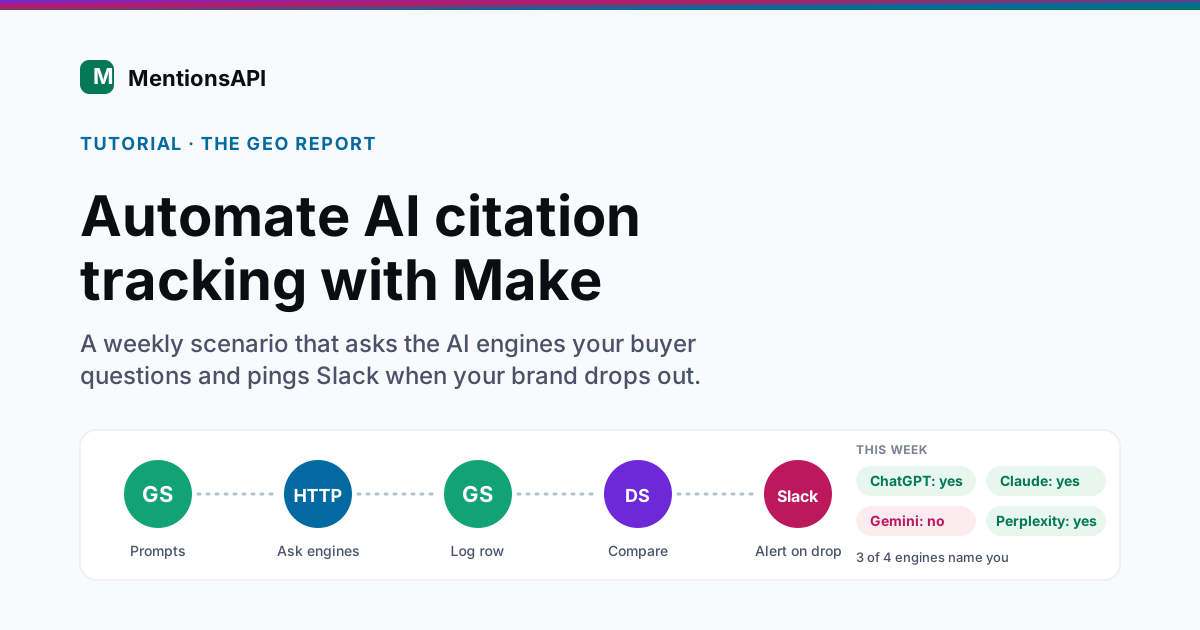
To automate AI citation tracking with Make, build a scheduled scenario that reads your buyer prompts from Google Sheets, sends each one to the AI engines through the HTTP module, and logs whether your brand was mentioned, ranked, and cited. A Data store remembers the last result so Slack only fires when visibility drops. It takes about an hour and runs weekly on Make's free plan.
I wrote the n8n version of this tracker last week. This one is for teams that already run their ops on Make and would rather click modules together than write JavaScript.
It also fixes the three things most DIY Make trackers skip: they count mentions but ignore citations, they run by hand, and they never tell you when something changes.
What does a Make scenario for AI citation tracking look like?
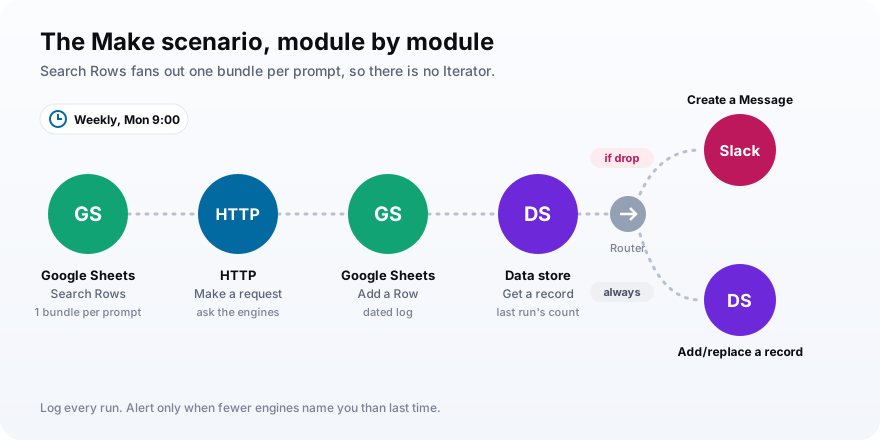
A Make scenario for AI citation tracking is a chain of six modules that runs on a schedule. Google Sheets supplies the prompts, the HTTP module asks the AI engines, a second Sheets module logs the answer, two Data store modules compare today with last time, and Slack posts when your brand disappears. Search Rows outputs one bundle per prompt, so you need no Iterator at all.
| Module | Its job | Key setting |
|---|---|---|
| Google Sheets: Search Rows | Read your buyer prompts | One bundle per row |
| HTTP: Make a request | Ask the AI engines each prompt | POST, JSON body, Parse response: Yes |
| Google Sheets: Add a Row | Log a dated result | Mentioned, rank, cited per engine |
| Data store: Get a record | Read last run for this prompt | Key = the prompt text |
| Router filter + Slack | Alert on a drop | Today below last time |
| Data store: Add/replace a record | Save today as the new baseline | Same key as the lookup |
Is that worth an hour of your week? I think so, because buyers now build their shortlists inside these engines.
ChatGPT referrals to news sites grew from under one million visits in January to May 2024 to more than 25 million in the same stretch of 2025, according to Similarweb data reported by TechCrunch. Your buyers are asking these engines for shortlists, and you cannot see the shortlist unless you go and look.
What you need before you build
Before you open the scenario editor, gather five things: a Make account, a Google Sheet, a Slack channel, an API key for the engines you want to check, and your brand facts. The free Make plan is enough for a weekly tracker, and none of the setup needs a developer.
- A Make account. The Free plan includes 1,000 credits a month, which covers a weekly run.
- A Google Sheet with two tabs, Prompts and Log, connected to Make through a Google connection.
- A Slack workspace with a channel for alerts and a Slack bot connection in Make.
- An AI data source: either your own OpenAI and Perplexity API keys, or one key for an AI-visibility API that covers several engines in a single call.
- Your exact brand name, any spelling variants, and your domain.
Spend your prep time on the prompts. Write the questions a buyer types before they know your name, like best AI visibility tools or alternatives to a competitor.
A prompt with your brand in it only proves the model can describe a company you handed it. Our guide to prompt monitoring covers how to pick prompts that map to real buying moments.
Step 1: Store your buyer prompts in Google Sheets
Put one buyer prompt per row in a Prompts tab, then start the scenario with the Google Sheets Search Rows module pointed at that tab. Search Rows returns each matching row as its own bundle, and Make runs every later module once per bundle. Ten rows means ten checks, with no Iterator to configure and no array to split.
Give the tab two header columns: Prompt and Active. Then add a filter in Search Rows so it only returns rows where Active is TRUE.
That Active column lets you park a prompt without deleting it, and lets a teammate edit the list without touching the scenario.
Step 2: Schedule the scenario to run weekly
Open the scenario's schedule settings and switch it from the default to Weekly or Daily at a fixed hour. By default a Make scenario runs every 15 minutes, which would burn credits and API budget on answers that barely change. A weekly run catches real movement, and daily is the most any brand needs during a launch or a competitive push.
Weekly and Daily both sit in the schedule menu, per Make's scheduling docs.
So why not just check every hour and be safe? Because AI answers are noisy at the level of a single run.
A SparkToro and Gumshoe study ran 2,961 prompts through ChatGPT, Claude, and Google's AI and found less than a 1-in-100 chance of getting the same brand list twice, Search Engine Journal reported in January 2026. Checking hourly would only hand you more of that randomness.
Step 3: Ask the AI engines with the HTTP module
Add the HTTP app's Make a request module after Search Rows. Set the method to POST, the body content type to application/JSON, store your API key in the module's Credentials, map the prompt from Step 1 into the request body, and set Parse response to Yes. The module now sends one request per prompt and hands back structured fields you can map.
Make's HTTP app documentation recommends putting authentication in the Credentials field rather than typing it into Headers. It keeps the key out of your scenario blueprint when you share or export it.
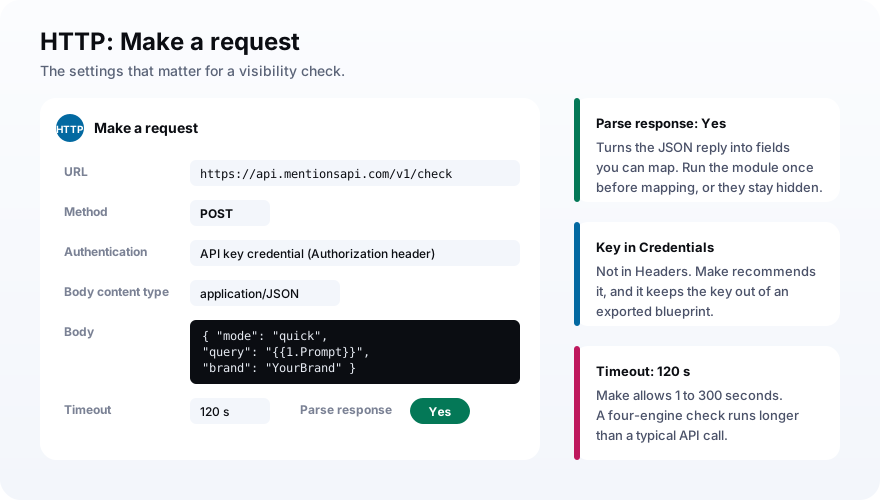
Here is the request body if you point the module at a visibility API that covers all four engines:
URL:     https://api.mentionsapi.com/v1/check
Method:  POST
Auth:    API key credential -> Authorization: Bearer lvk_live_...
Body:    application/JSON (JSON string)

{
  "mode": "quick",
  "query": "{{1.Prompt}}",
  "brand": "YourBrand"
}
Set the Timeout to around 120 seconds. Make allows anything from 1 to 300, and a four-engine call takes longer than a typical API request.
You can also call each engine yourself. That is cheaper for one engine and gets painful fast for four, so it is worth seeing the tradeoff before you commit.
| Approach | HTTP modules per prompt | What you have to handle |
|---|---|---|
| Call OpenAI and Perplexity directly | One per engine | Separate keys, body shapes, and citation formats |
| One AI-visibility API call | One for all engines | A per-check fee; fields already normalized |
| Scrape the chat apps | Not practical in Make | Breaks often and violates the terms of service |
And you do want more than one engine. Between September and November 2025, ChatGPT referrals grew 52% year over year while Gemini referrals grew 388%, per Similarweb figures compiled by Digiday. Watch only ChatGPT and you miss the engine your buyers are moving to.
Step 4: Log mentions, citations, and rank to Google Sheets
Add a Google Sheets Add a Row module pointed at your Log tab and map three fields per engine: whether your brand was mentioned, its rank in the answer, and whether your domain appears in the cited sources. Add the run date and the prompt as the first two columns. Every run appends rows, and after a few weeks those rows are the trend line you actually care about.
With Parse response on, the fields arrive ready to map. The mentioned flag and the rank map straight across, for example providers.chatgpt.mentioned and providers.chatgpt.rank.
The cited column needs one formula, because citations come back as a list of URLs. Paste this into the mapping field and swap in your domain:
contains(join(map(2.providers.chatgpt.citations; "url"); " "); "yourbrand.com")
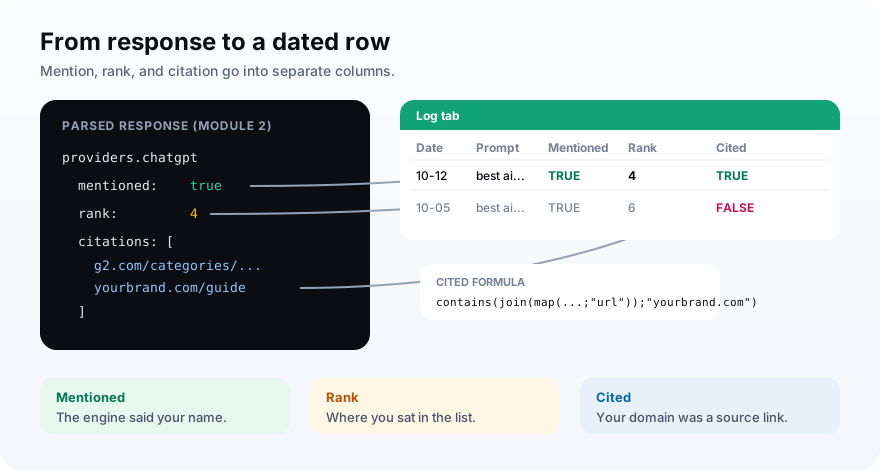
Keep mentioned and cited in separate columns. They measure different wins.
A mention is the model saying your name. A citation is the model linking to your site as a source, which is the stronger signal of trust and the only one that can send a click.
And clicks are scarce. When Google shows an AI summary, users click a result link on 8% of visits versus 15% without one, and click a source inside the summary on just 1% of visits, according to Pew Research Center. Analytics will undercount what AI does for your pipeline, and this sheet catches what the clicks miss.
Step 5: Alert Slack only when the answer changes
Add a Data store and use it as the scenario's memory. Get a record looks up the last result for this prompt, a Router filter passes only when today's engine count is lower than the stored one, a Slack Create a Message module posts the drop, and Add/replace a record saves today's count. You get one alert when visibility falls, instead of the same alert every morning.
Create the Data store with two fields: prompt as the key and engines as a number. Then add a single Make formula on the HTTP output that counts how many engines named you:
if(2.providers.chatgpt.mentioned; 1; 0) + if(2.providers.claude.mentioned; 1; 0)
+ if(2.providers.gemini.mentioned; 1; 0) + if(2.providers.perplexity.mentioned; 1; 0)
Put a Router after Get a record with two routes. The alert route carries a filter: today's count is less than the stored engines value, and it ends in Slack. The second route has no filter and always runs Add/replace a record with the same prompt key.
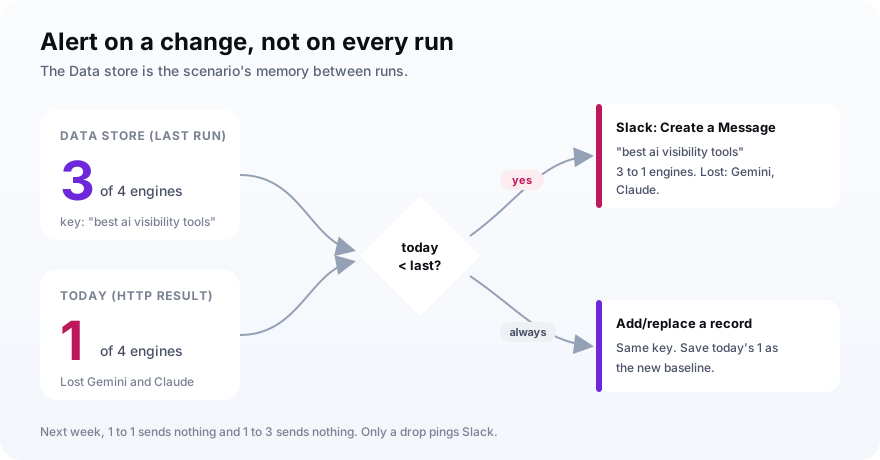
Keep the Slack text to one line: the prompt, the count before and after, and which engines dropped you.
Make sure the key you save matches the key you look up, character for character. A stray space or a capital letter makes Get a record come back empty, and the alert route never fires.
A tracker that alerts on every absence trains you to mute the channel. One that alerts on a change is the one you still read in month three.Why the Data store matters
How many Make credits does AI citation tracking use?
Plan on roughly four Make credits per prompt per run. Make charges about one credit per module action, and each prompt passes through the HTTP module, Add a Row, Get a record, and Add/replace a record, while the Router itself is free. Ten prompts cost around forty credits a run, so a weekly schedule stays well inside the 1,000-credit Free plan.
Those rules come from Make's pricing page, which says most actions cost one credit and that Router and error handler modules cost none. Search Rows adds a credit at the start, and Slack adds one each time an alert actually fires.
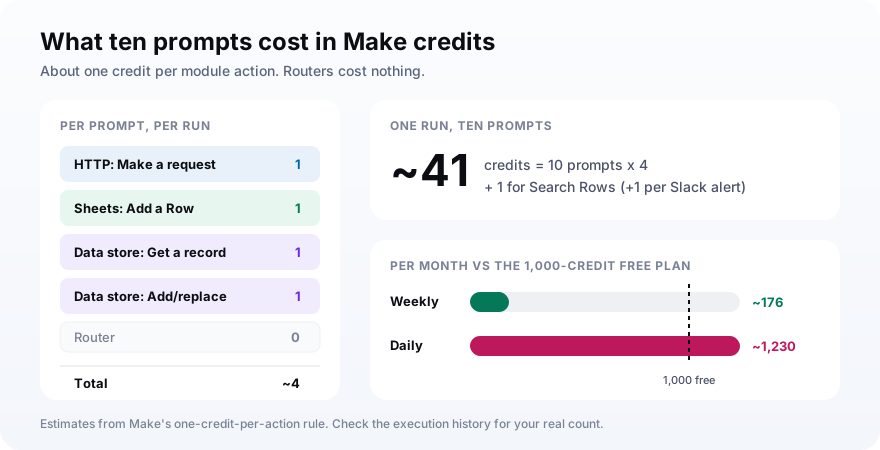
| Prompts | Credits per run | Weekly, per month | Daily, per month |
|---|---|---|---|
| 5 | about 21 | about 90 | about 630 |
| 10 | about 41 | about 176 | about 1,230 |
| 25 | about 101 | about 434 | about 3,030 |
Treat these as estimates and check the real number in the scenario's execution history after the first run. Alerts and any extra modules you add will move it.
Make credits are only half the bill. The API you call charges too: on MentionsAPI, a fresh quick check covering all four engines is 150 credits, and a repeat of a recently asked query costs 5.
Should you build this tracker in Make or n8n?
Build it in Make if your team already uses Make and wants a visual, form-based scenario with Google Sheets and Slack connected in minutes. Build it in n8n if you want to self-host, write JavaScript in a Code node, or keep costs flat as the workflow grows, since n8n bills per execution while Make bills per module action. Both can run the identical tracker.
| Question | Make | n8n |
|---|---|---|
| How you build it | Visual modules and forms | Nodes plus a JavaScript Code node |
| How it bills | Per module action (credits) | Per workflow execution |
| Brand detection | Make formulas in mapping fields | A few lines of JavaScript |
| Hosting | Cloud only | Cloud or self-hosted |
| Best for | Ops and marketing teams | Developers and self-hosters |
My honest take: pick the tool your team will still maintain in six months. A tracker nobody opens is worse than no tracker, whatever it runs on.
How to read your AI citation tracking data
Read the Log tab for frequency over weeks, not for any single rank on any single day. The most reliable number is your mention rate: the share of prompt runs where an engine names you. Rank jumps around run to run, so a brand that sits at position two today and five tomorrow has not necessarily moved.
The same SparkToro study backs this up. In one headphone test, Bose, Sony, Sennheiser, and Apple each appeared in 55% to 77% of 994 responses, even though the order kept changing.
So build a pivot on the Log tab: mention rate per engine per week, and citation rate beside it. That gives you two lines you can trust.
When you want to turn those into a single competitive number, the next step is share of model, and our AI search analytics guide covers the wider metric set.
The data is only worth collecting if you act on it. The Princeton GEO study found that adding statistics and cited sources to a page raised its visibility in AI answers by 30% to 40%. Aim fixes like that at the prompts your sheet says you are losing.
Mistakes that make a Make tracker lie to you
Most broken trackers fail quietly. The scenario runs, the sheet fills up, and the numbers are wrong because of a setup choice nobody revisited. These are the mistakes I see most often in Make builds, and each one makes your visibility look better or worse than it really is.
- Putting your brand name in the prompts, which tests recall and inflates your mention rate.
- Leaving the default 15-minute schedule on, which burns credits for answers that have not changed.
- Logging only mentions, so you never learn whether any engine trusts you enough to link.
- Matching a brand name that is also a common word, which logs false positives all day.
- Alerting on every absence instead of on a change, which teaches everyone to ignore Slack.
- Mismatched Data store keys, so Get a record always comes back empty and no alert ever fires.
- Tracking ChatGPT alone while your buyers drift to Gemini and Perplexity.
Frequently asked questions
Can Make.com track whether ChatGPT mentions my brand?
How many Make credits does an AI citation tracking scenario use?
How do I stop Make from sending the same Slack alert every day?
Should I use Make or n8n to track AI citations?
How often should I check AI answers for my brand?
Do I need to code to build an AI visibility tracker in Make?
Build the scenario this week, read it next month
To automate AI citation tracking with Make, do this next: create the Prompts tab with five neutral buyer questions, build the six modules, press Run once to unlock the mapping, then set the schedule to Weekly. Leave it alone for four runs before you change anything, so you have a baseline to compare against.
After a month, add prompts and engines where the sheet shows gaps. If you would rather the scenario stay at one HTTP module however many engines you track, point it at an AI-visibility API like MentionsAPI and spend your time on the fixes instead of the plumbing.